
Managing Users
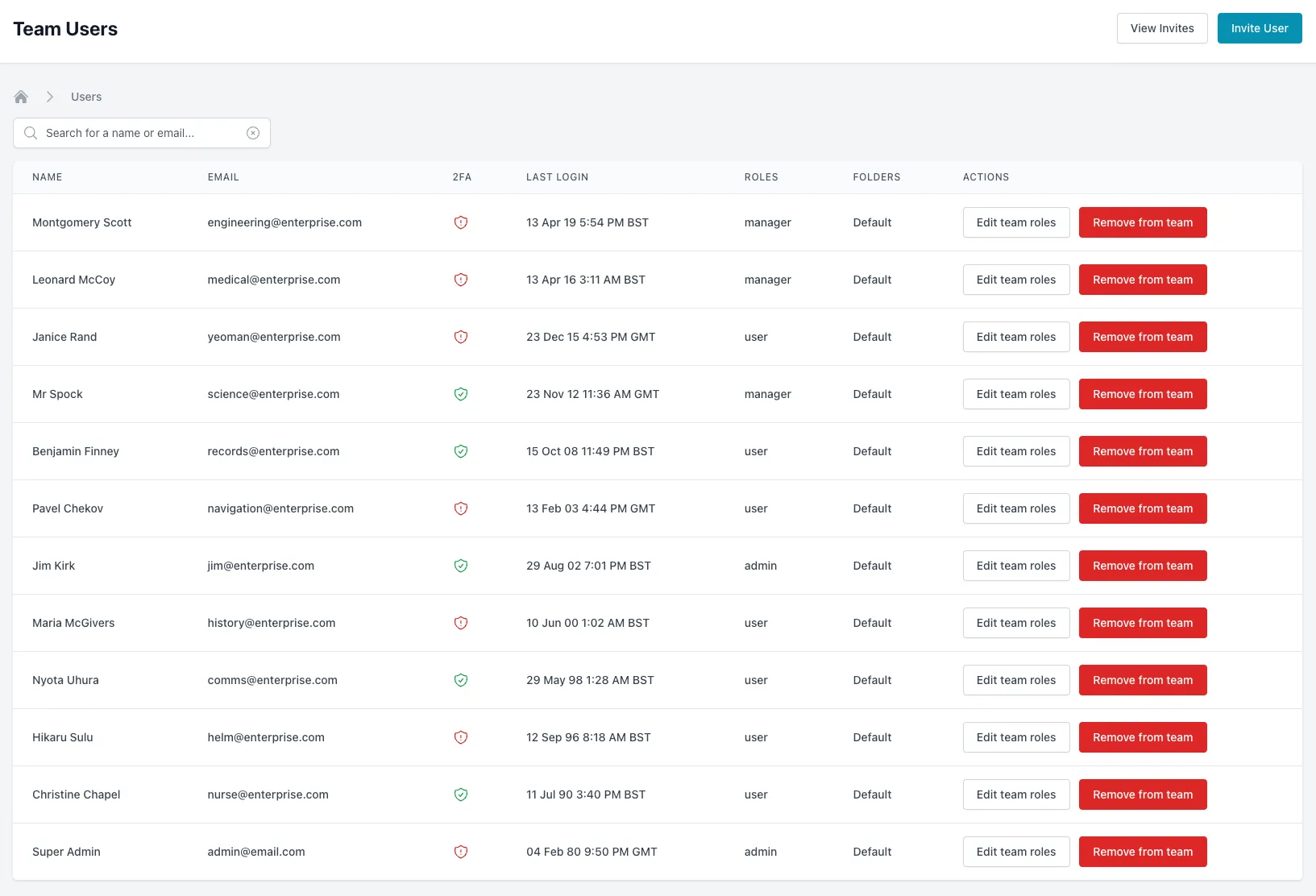
We’ve made it easy for you to manage team users, change user roles and invite new users. Visit the team users page to get started.
From here you can see a list of current team users including if they have two-factor authentication enabled, when they last logged in, which roles they have applied and which folders they have access to. You can also search for a name or email.
Inviting Users
Section titled “Inviting Users”Inviting one user
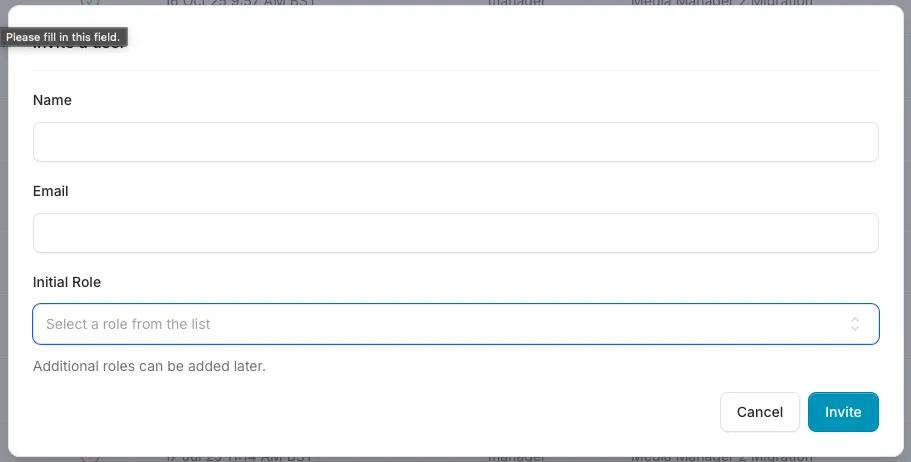
Section titled “Inviting one user”To invite a new user to your Media Manager account click the “Invite User” button. Here you can enter their name, email address and set a role for the user (more roles can be added later).
Viewing Invites
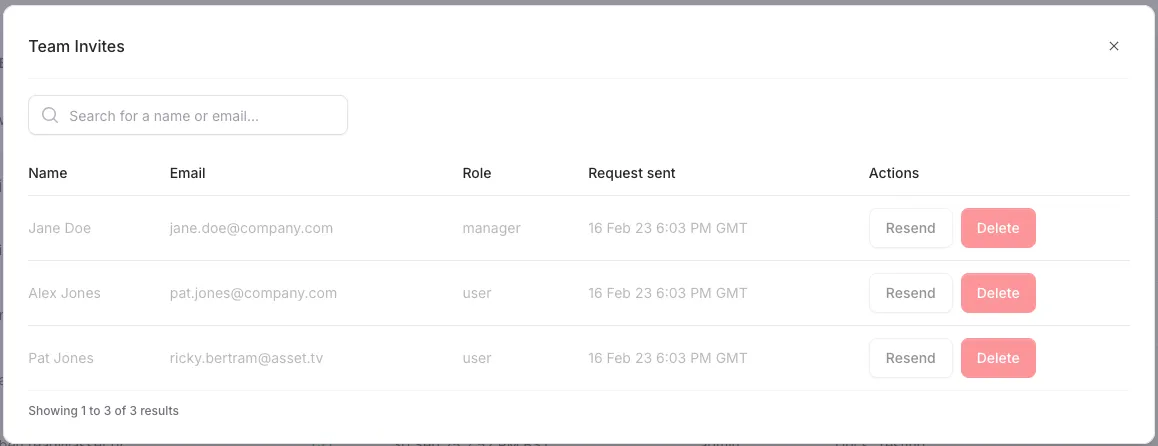
Section titled “Viewing Invites”Clicking “View Invites” from the header will open a list of people invited to join your team, from here you can search, resend or delete invites as needed.
Managing Roles
Section titled “Managing Roles”Each user in your team may have one or more roles. Roles grant permissions to user within the application. You can edit a users team roles from the team users page.
Roles and Permissions Table
Section titled “Roles and Permissions Table”The current roles and their permissions are listed below. A user may have multiple roles assigned.
| Admin | Manager | User | Sandbox | |
|---|---|---|---|---|
| Users | ||||
| View users | ||||
| Remove users | ||||
| Manage users | ||||
| Team | ||||
| View team | ||||
| Update team | ||||
| Activity log | ||||
| View log | ||||
| Webhooks | ||||
| View webhook | ||||
| Create webhook | ||||
| Update webhook | ||||
| Delete webhook | ||||
| Folders | ||||
| Create folder | ||||
| Update folder | ||||
| Delete folder | ||||
| Tags | ||||
| View tags | ||||
| Create tag | ||||
| Update tag | ||||
| Delete tag | ||||
| Invites | ||||
| Create invite | ||||
| Delete invite | ||||
| Resend invite | ||||
| Media | ||||
| Create media | ||||
| View own media | ||||
| View media | ||||
| Update own media | ||||
| Update media | ||||
| Delete own media | ||||
| Delete media | ||||
| API | ||||
| List teams | ||||
| List folders | ||||
| List media | ||||
| Get media | ||||
| Create media | ||||
| Transfer video |
Removing users
Section titled “Removing users”To remove a user from your team simply click the “Remove from Team” button. This does not remove any content they have created or delete their Media Manager account but simply removes their access to your team.